Your first route.
One step at a time.
Connect source outputs to destination inputs in Node view. Route video, audio and data by drawing the connection.
Start in Node view
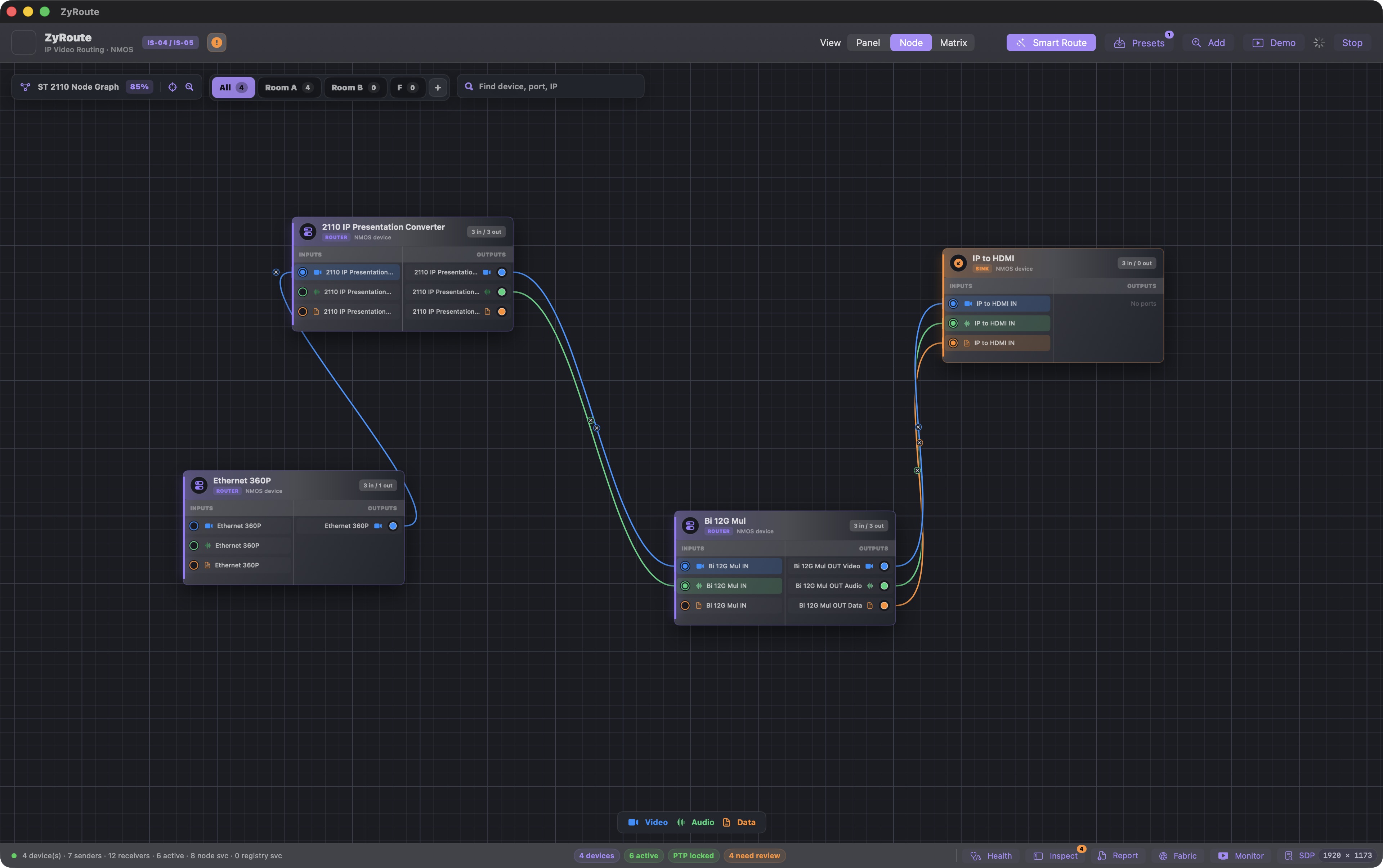
Connect your Mac to your equipment network and open Node view. This example uses four connected test devices; that is the size of this test setup, not a four-device limit in ZyRoute. Each device card has INPUTS on the left and OUTPUTS on the right. Identify the source that sends the signal and the destination that receives it.
Choose video, audio or data
Use the port circles on the device cards: blue for Video, green for Audio and orange for Data. Start at the appropriate OUTPUT on the source, then find the matching signal type under INPUTS on the destination. A device can have both inputs and outputs; use the correct side for the route you want.
Drag from source to destination
Press and hold the source OUTPUT port, drag to the destination INPUT port, then release to request the route. For example, connect the blue Video output on Bi 12G Mul to the blue Video input on IP to HDMI. Audio and Data use their matching green and orange ports. The screenshot shows the existing connections, not an animation of the drag.
Check Smart Route before dragging
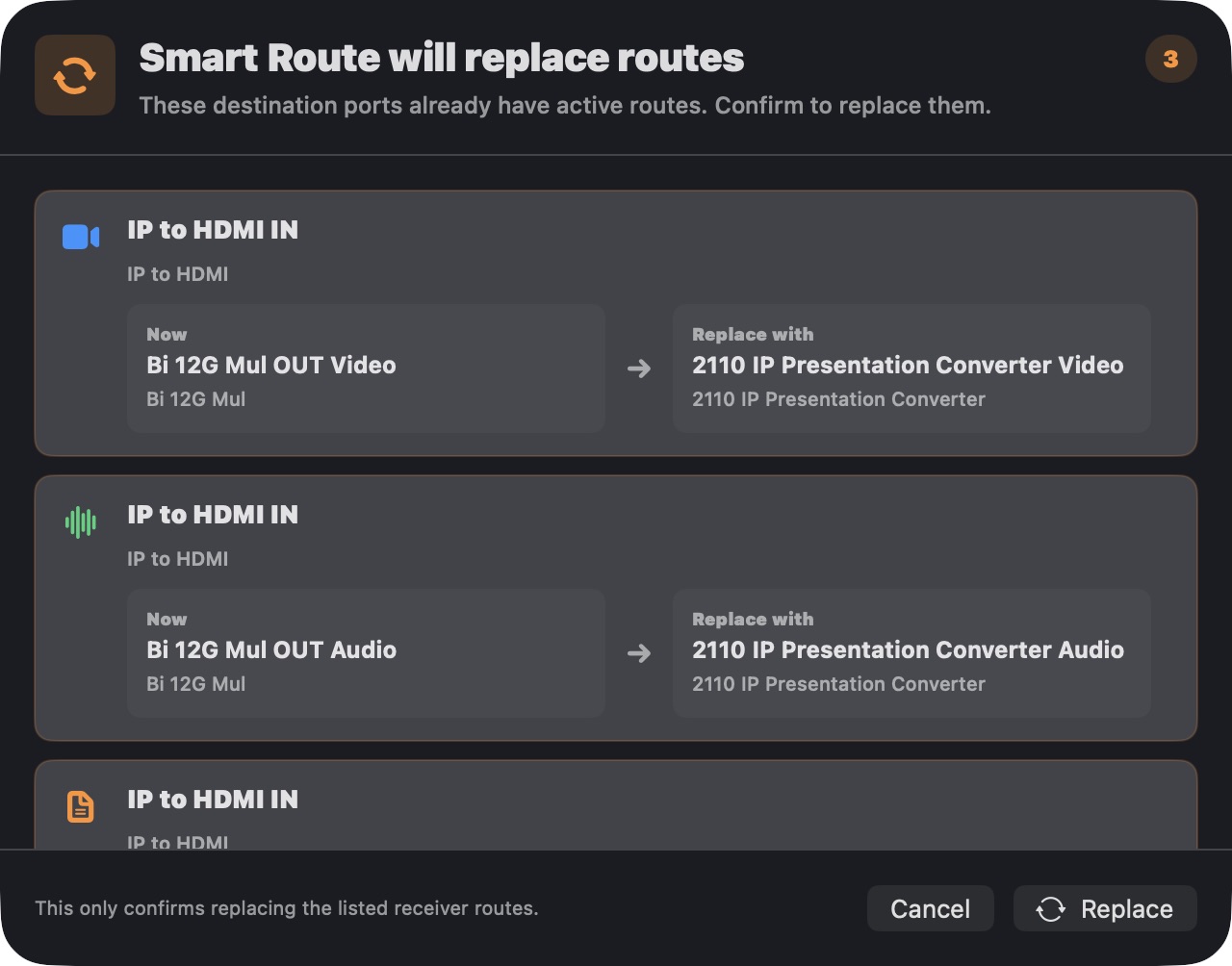
The Smart Route button indicates whether matching streams are grouped. When enabled, its help text says a single drag routes matching Video, Audio and Data streams. Check the setting before you drag: a connection may involve more than just the port you started from. When replacing active routes, review the listed receiver changes before confirming Replace. The confirmation shown below was captured using the Panel workflow.
Verify the connection
Check the connection lines between the intended devices and the route status reported by ZyRoute. Blue, green and orange lines identify the signal types. Confirm picture and sound on the receiving equipment separately; a routing status alone does not prove the media is playing correctly.
If a device is missing
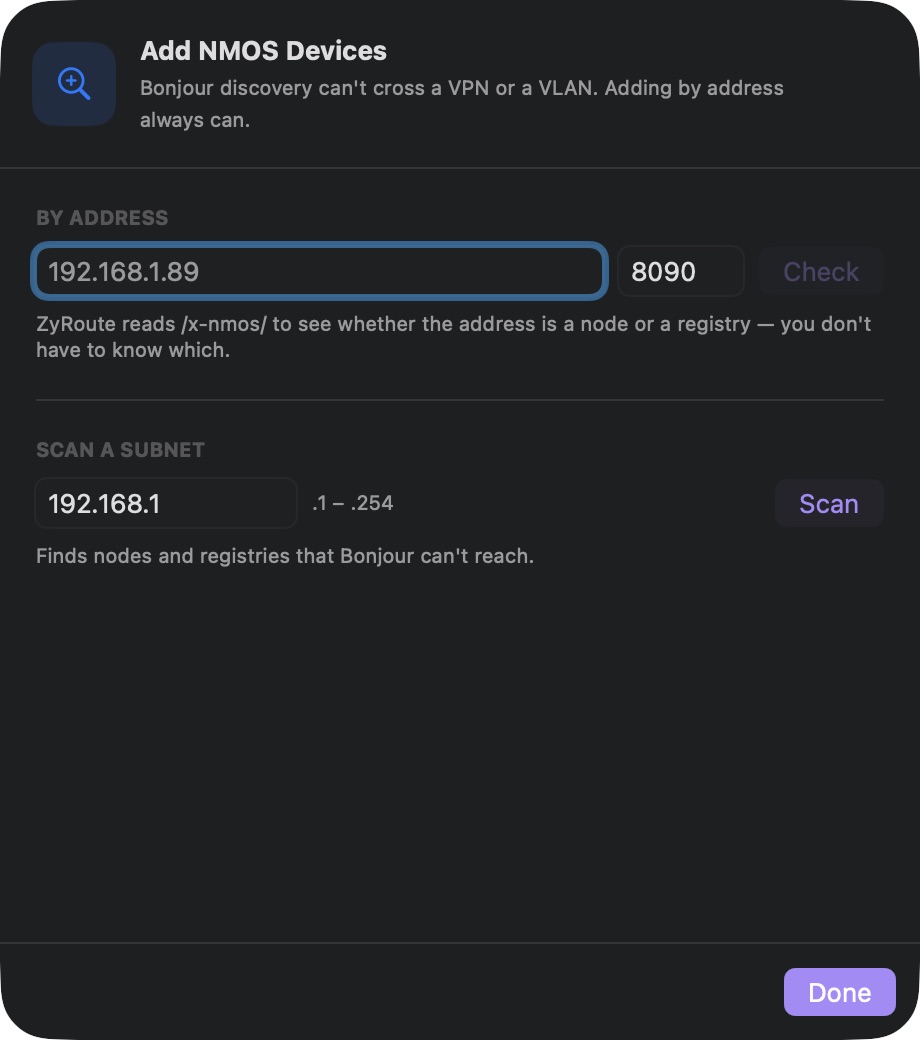
Open Add in the top toolbar. Under By Address, enter the device address and its actual NMOS port, then click Check. Scan a Subnet is another option. Use the values configured on your equipment; the values shown here are examples. The device must be reachable from your Mac.
Prefer buttons? Use Panel + TAKE.
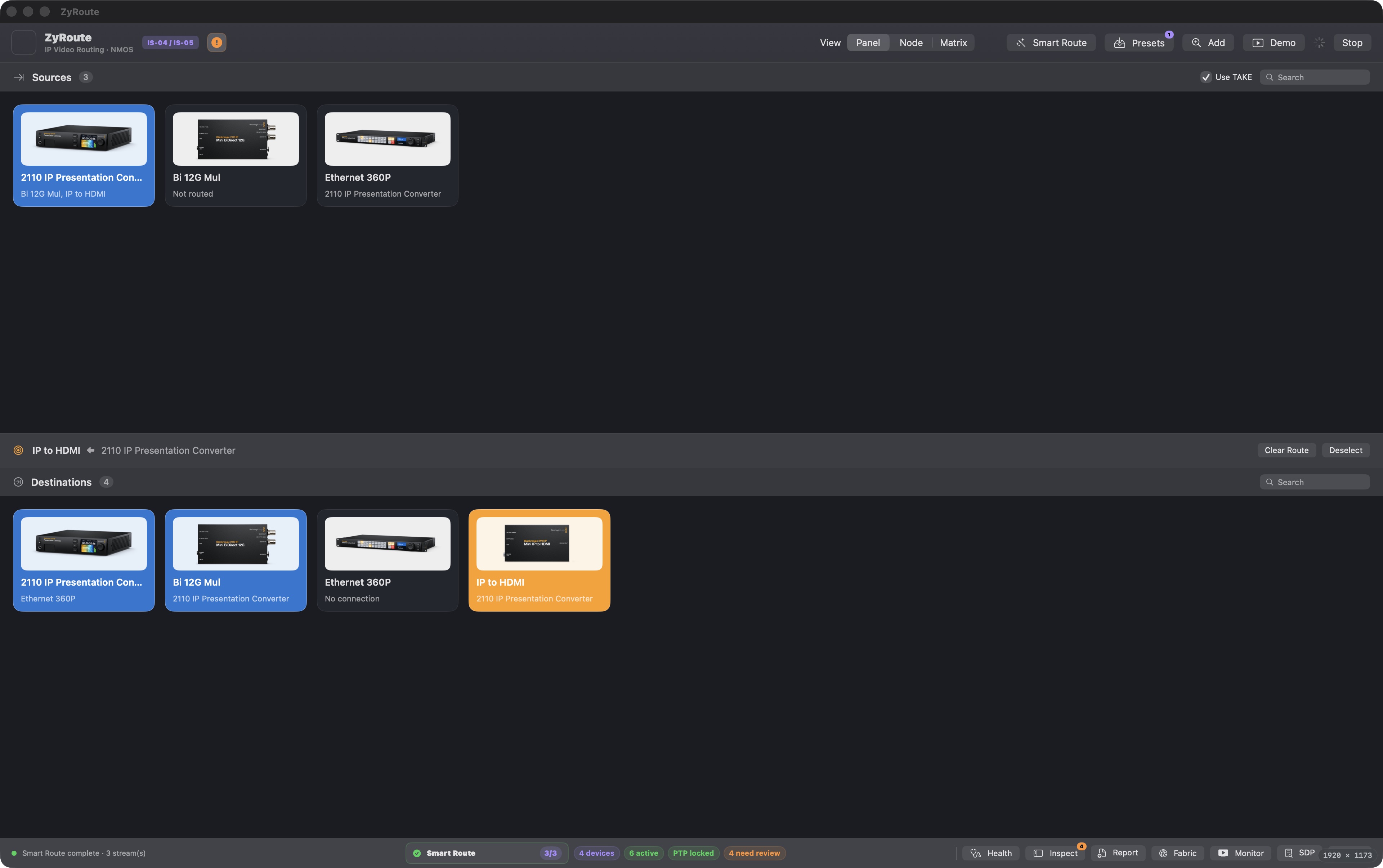
Node routing is the drag-and-connect workflow described above. Panel offers another way to request a route without drawing a line.
- Switch View to Panel and leave Use TAKE enabled.
- Select the receiver under Destinations, then choose a sender under Sources.
- Review the destination, source and stream count, then click TAKE.
- If replacing existing routes, review the confirmation and click Replace, or Cancel to keep them.
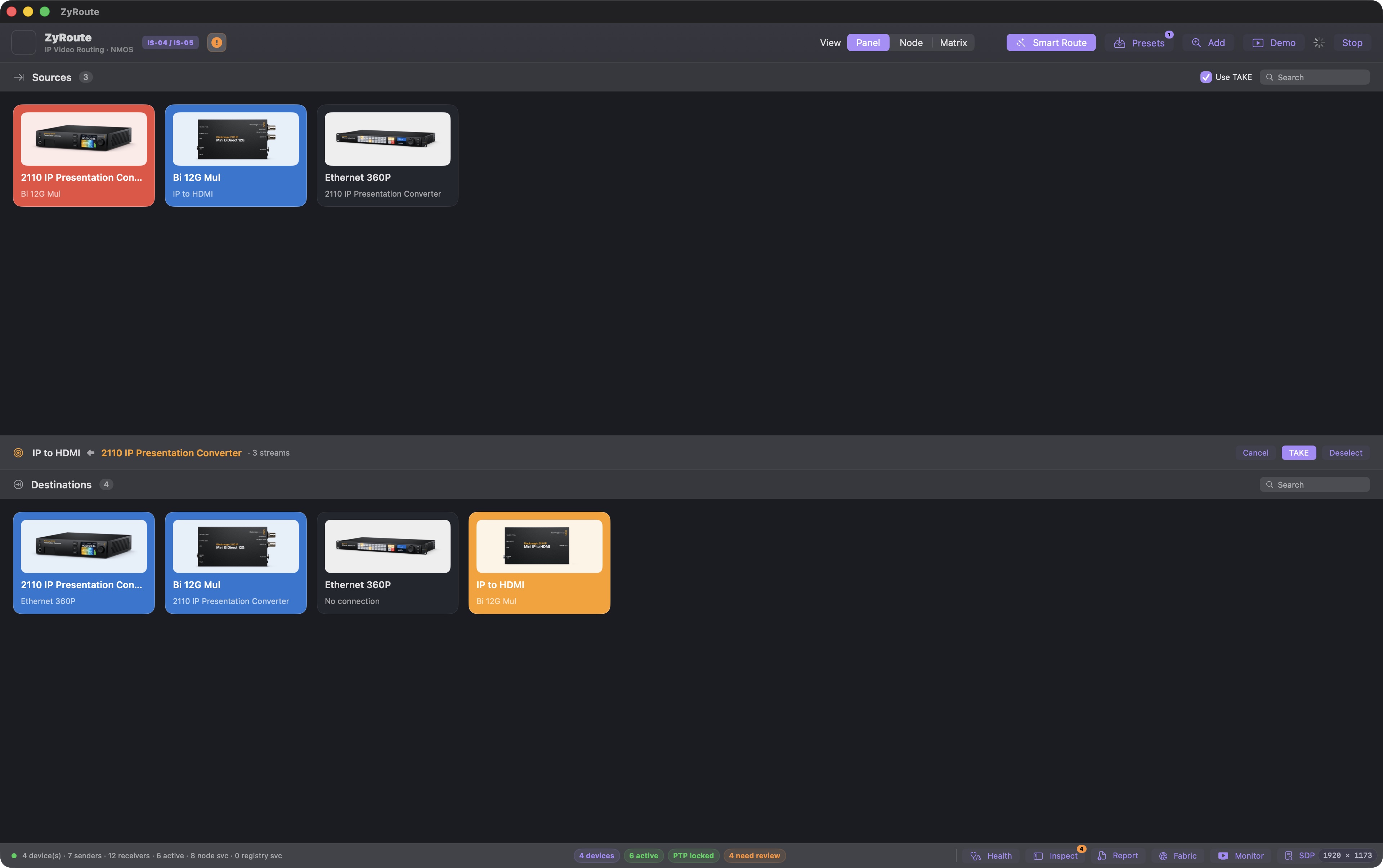
In our Panel test, IP to HDMI was routed from 2110 IP Presentation Converter. ZyRoute reported Smart Route complete · 3 stream(s). We then restored Bi 12G Mul as the original source. This test verified Panel routing; the Node instructions above describe the primary workflow.
If something does not look right
- No devices: check the network connection, address and NMOS port. Try Add for reachable devices outside Bonjour discovery.
- A route does not apply: open Log to review IS-05 requests and responses, or Inspect for technical details.
- Warnings: open Health for the system check. A successful routing command does not mean every device warning has cleared.
- No picture or sound: verify the receiving equipment and signal compatibility separately from route status.