Arrange cards, select items and edit an existing cable. This is your layout tool.
From a blank canvas
to a finished proposal.
Build the Demo system step by step. Add the equipment, draw its connections, price the details and bring it all together in a PDF.
Real screenshots from ZyFlow · October 2026 · Click any screenshot for a closer look.
Start building →A second pair of eyes for your design.
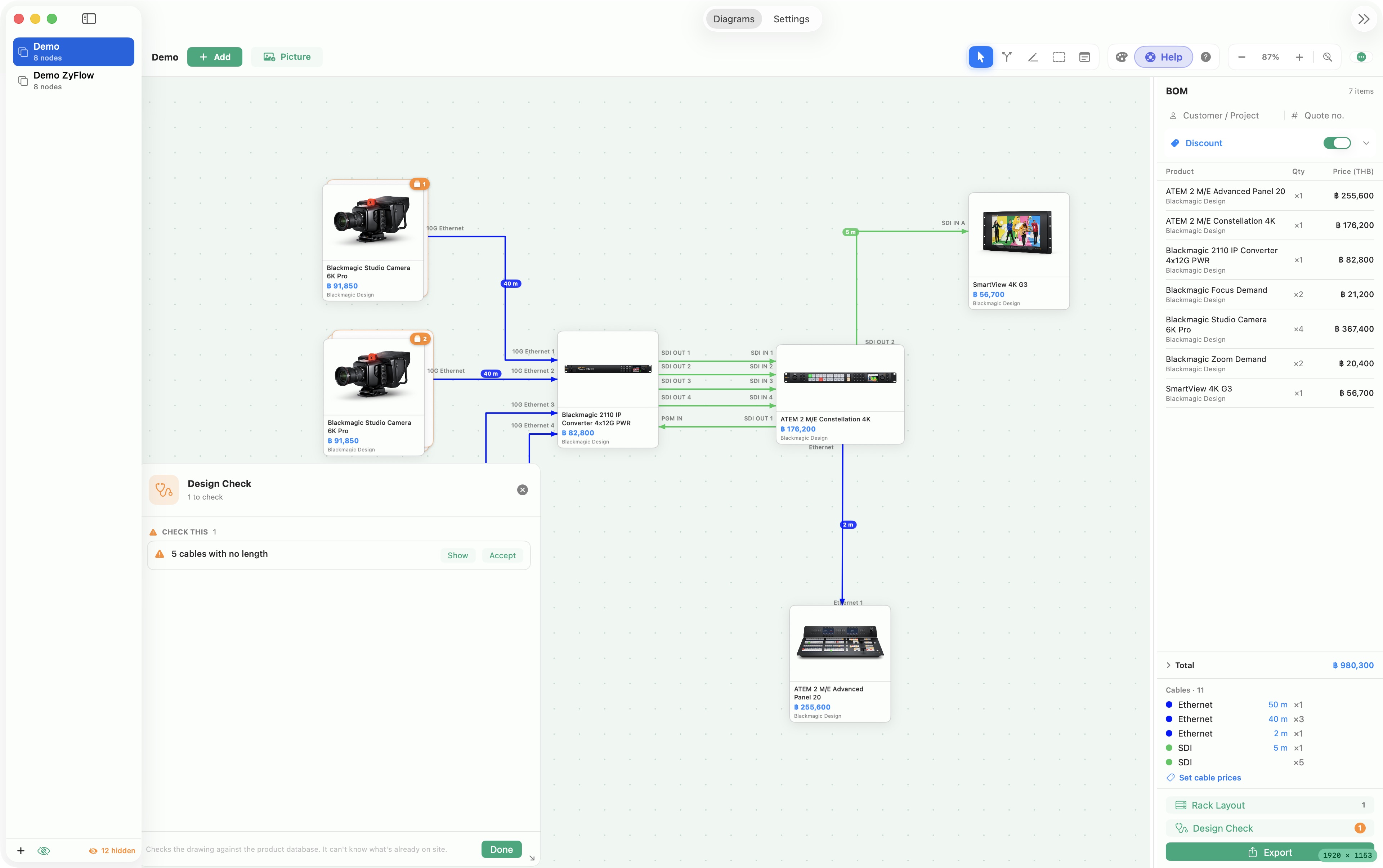
New to system design? Design Check helps you spot things that deserve another look while you build. Open it from the bottom of the BOM sidebar, read each finding, and use Show to locate the affected items.
In this Demo, it flags five cables without a length. Add the missing information and review again. The check assists your review; it does not silently fix the diagram for you.
Create your first project.
- Click + at the bottom of the project sidebar.
- Enter a project name, such as Demo, then click Create.
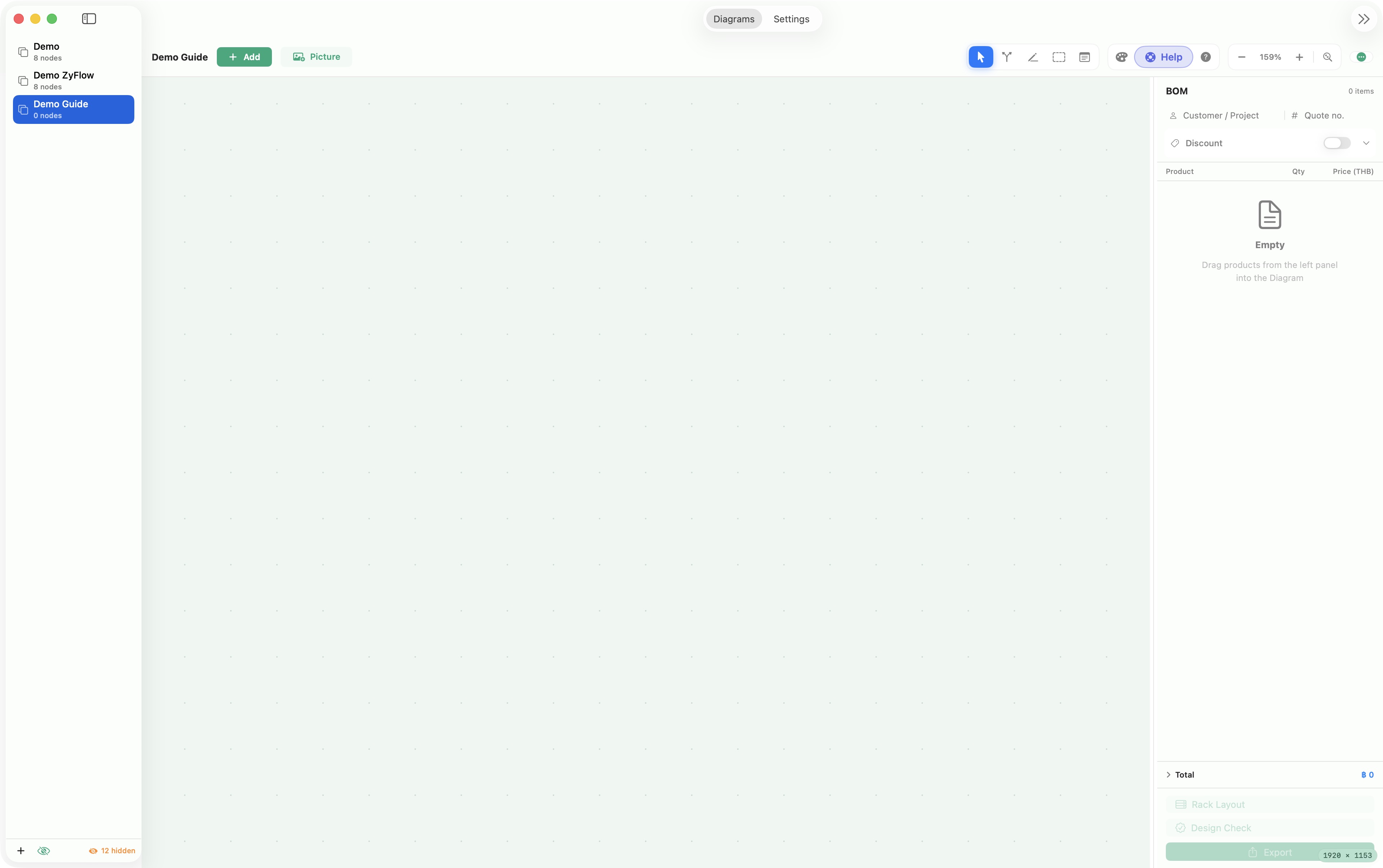
- Select the project in the sidebar. Its blank canvas is ready for equipment.
We used a separate Demo Guide project for the first steps, then the existing Demo for the completed system shown below.
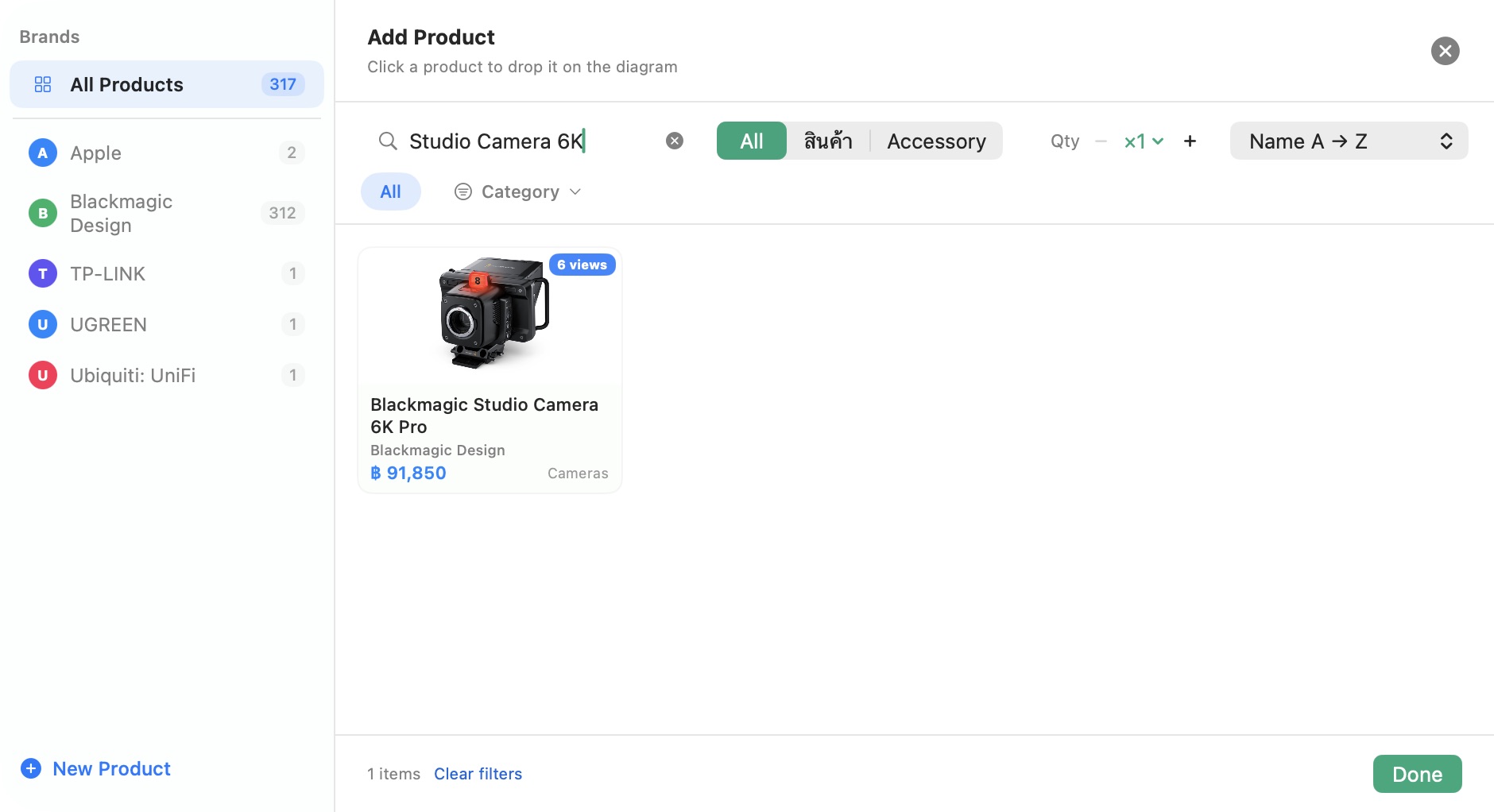
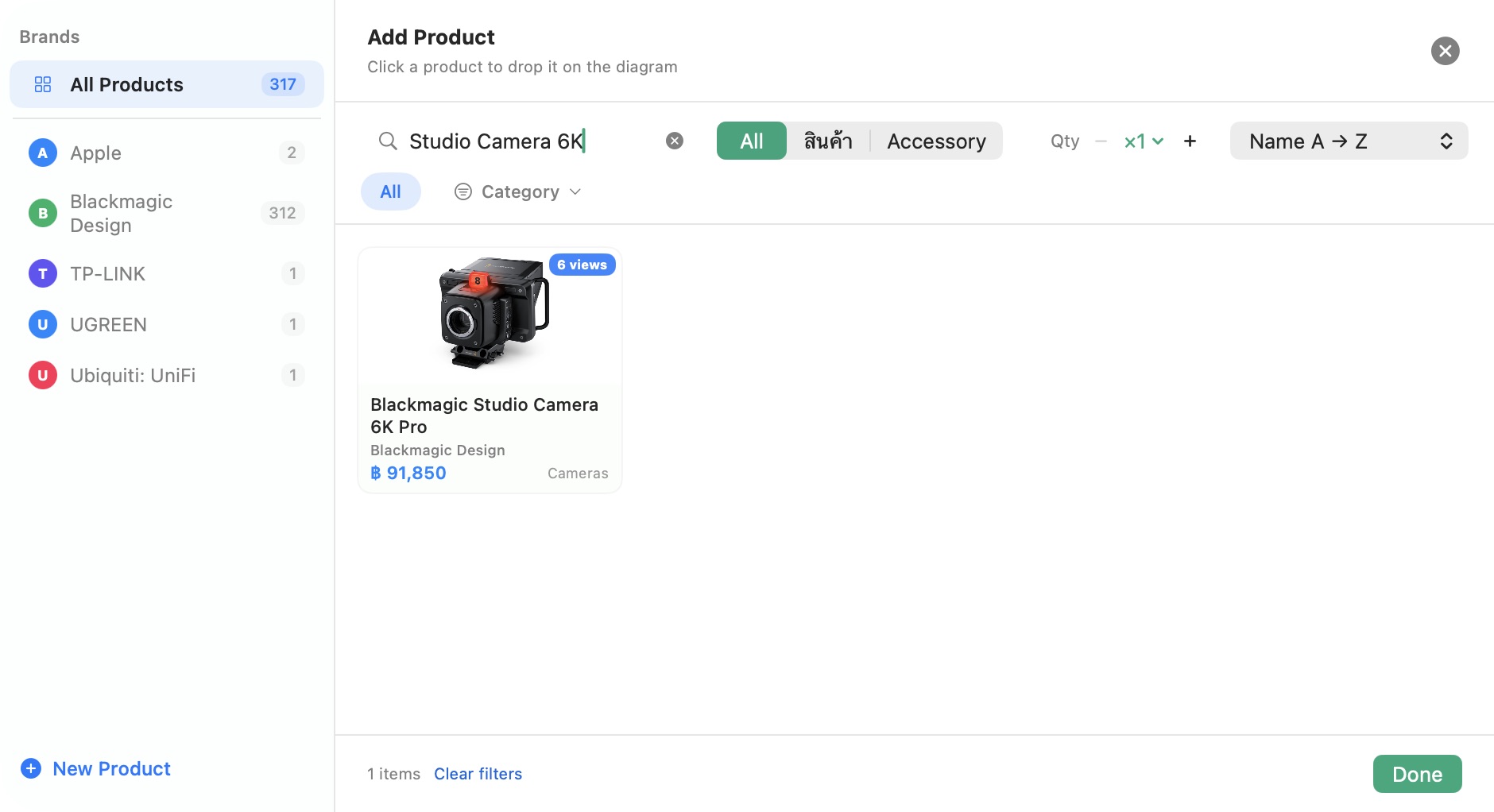
Add products. Choose their view.
- Click + Add above the canvas.
- Search for a product, or browse the brand and product filters.
- Set the quantity, then select the product. If it offers multiple views, choose the image you want on the diagram.
- The selected view adds the product. Keep adding items, then click Done.
- Use Select / Move, the first toolbar tool, to arrange the cards. Put sources on the left and destinations on the right.
Equipment used in the completed Demo
- 4 × Blackmagic Studio Camera 6K Pro
- 1 × Blackmagic 2110 IP Converter 4x12G PWR
- 1 × ATEM 2 M/E Constellation 4K
- 1 × SmartView 4K G3
- 1 × ATEM 2 M/E Advanced Panel 20
- Accessories: 2 × Focus Demand and 2 × Zoom Demand
Attach the accessories, too.
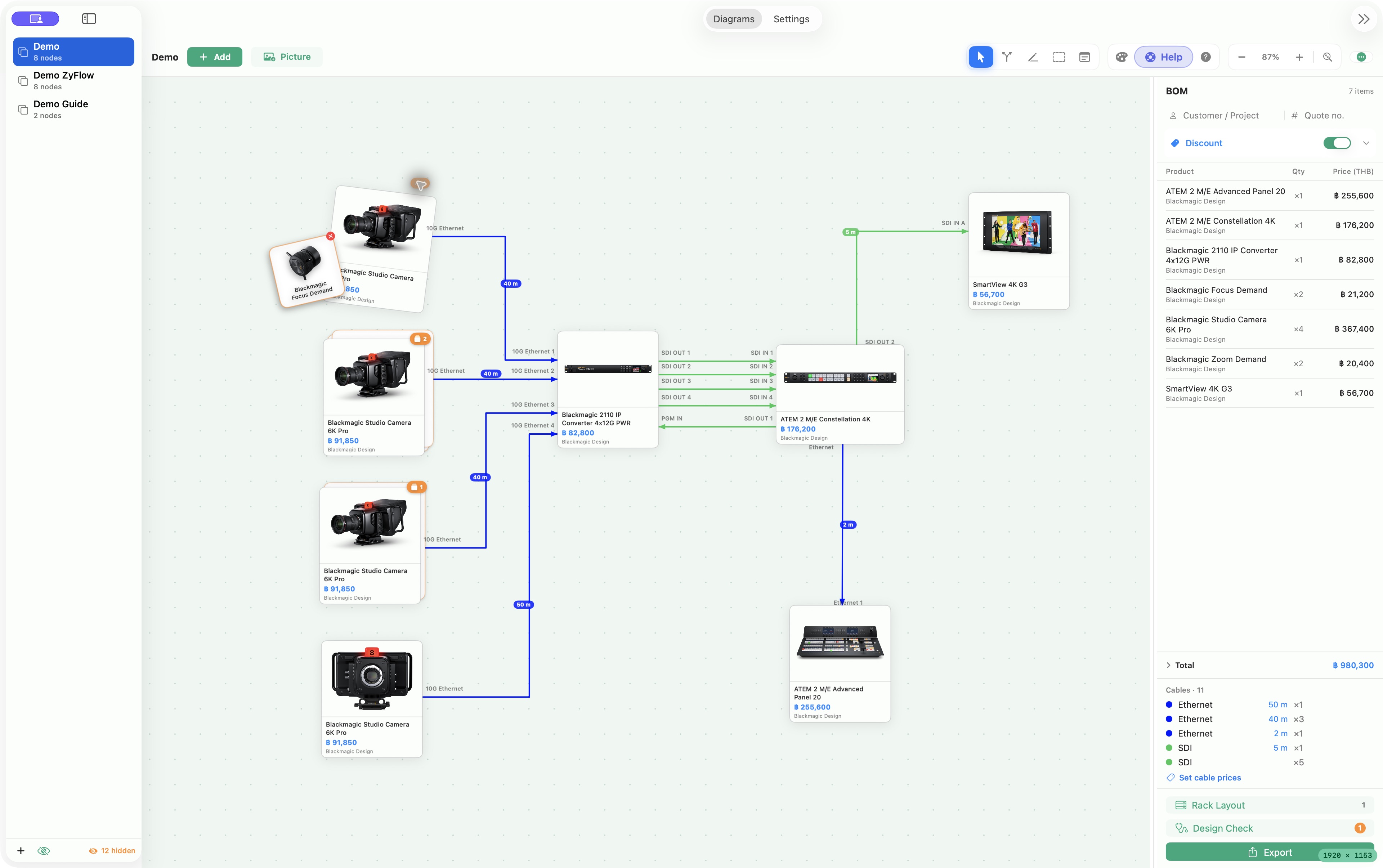
- Right-click a product card and open its Accessory submenu.
- Select an accessory intended for that product. Read any compatibility note before continuing.
- Check the BOM: attached accessories are included in the quantities and pricing.
- Click the orange accessory count on a card to reveal its attached items.
You can also browse accessories using the Accessory filter in Add Product. The product card’s submenu is useful when choosing an accessory for a particular device.
Three tools. Different jobs.
Drag from a source card to a destination card, then select the source and destination ports. Let the app create the connection path.
Choose your own cable path, one corner at a time. Use this for clean, deliberate system drawings.
The first tool moves and selects; the second and third create connections. For the Demo-style drawing, focus on the third tool.
Draw the signal path, corner by corner.
- Select the third toolbar button — Draw Line.
- Click the source device and select the port the cable leaves from.
- Click empty canvas positions to add corners along the intended path.
- Click the destination device and choose the port the cable plugs into.
- Review the connection and any port compatibility warning before continuing.
Shift 90° constraint⌘ Z Undo the last waypoint while drawingEsc Cancel the unfinished line
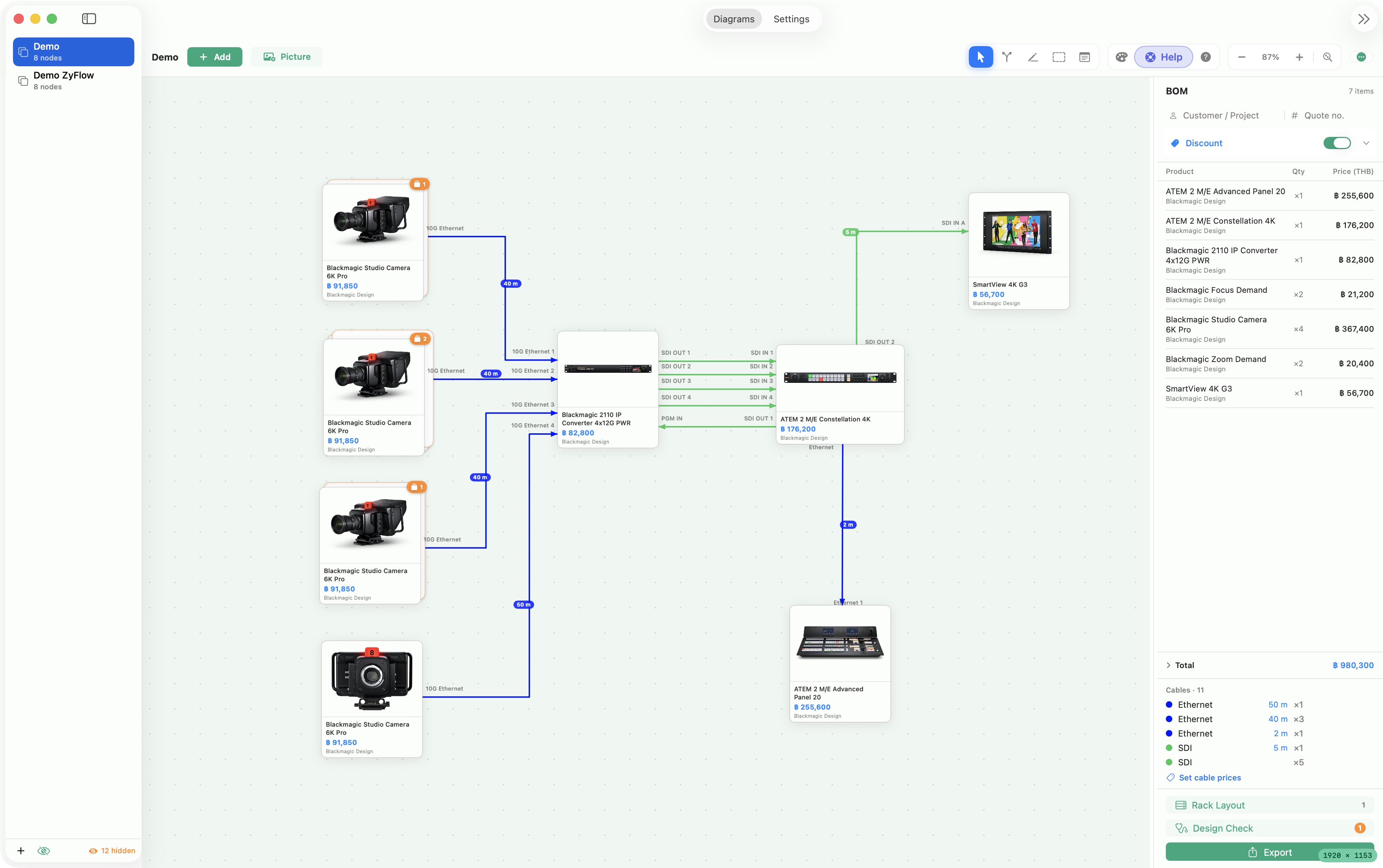
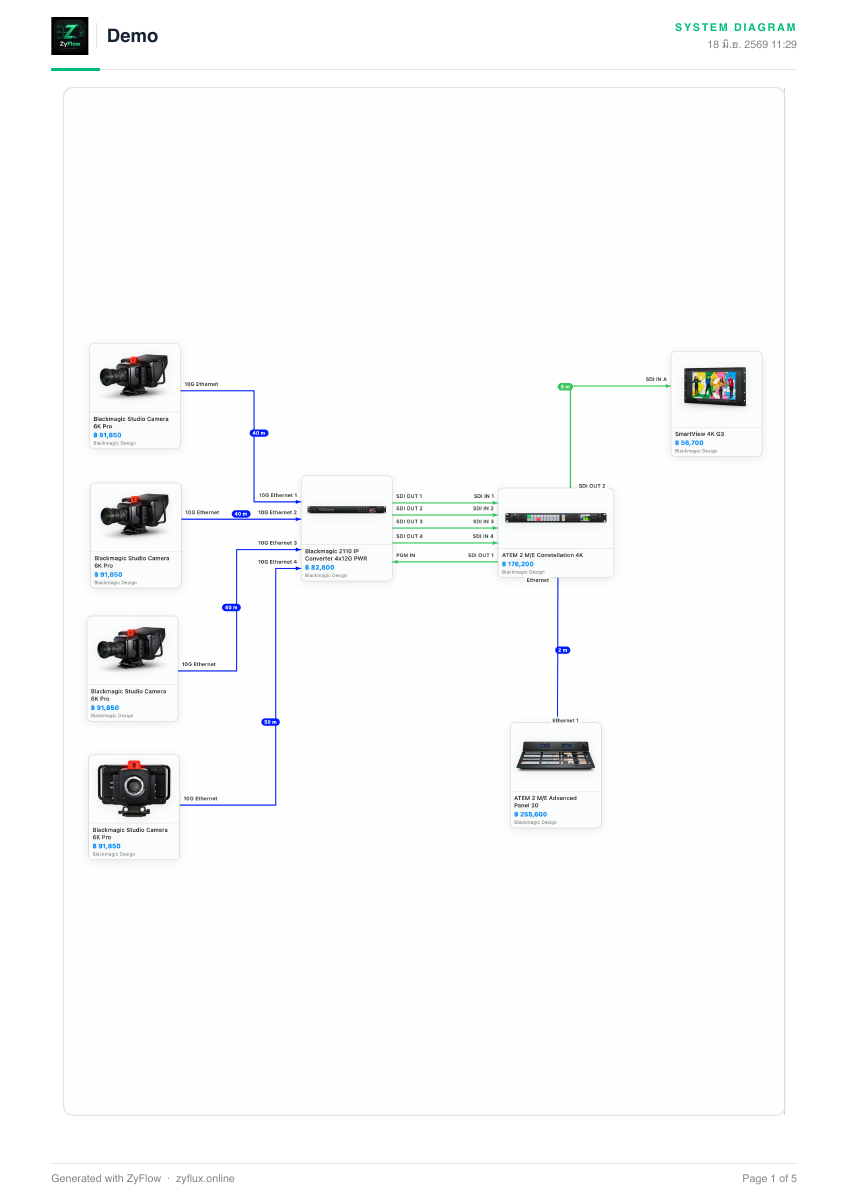
For the first Demo connection, start at the camera’s 10G Ethernet port and finish at the converter’s 10G Ethernet 1. Route the line around the cards so labels remain readable.
Follow the remaining Demo connections
- Connect the other cameras to converter Ethernet ports 2, 3 and 4.
- Connect converter SDI OUT 1–4 to the matching switcher SDI IN 1–4.
- Connect switcher SDI OUT 1 to converter PGM IN.
- Connect switcher SDI OUT 2 to SmartView SDI IN A.
- Connect the switcher Ethernet port to the Advanced Panel Ethernet port.
This is the example drawing shown here. Verify the actual equipment specifications and network requirements for your installation.
Add real cable lengths.
- Switch back to Select / Move.
- Double-click a cable to open Cable length (metres).
- Enter the measured or planned length, for example 40 or 7.5, and save.
- Repeat for the other cables. Drag a length label along its cable if it overlaps a card or another label.
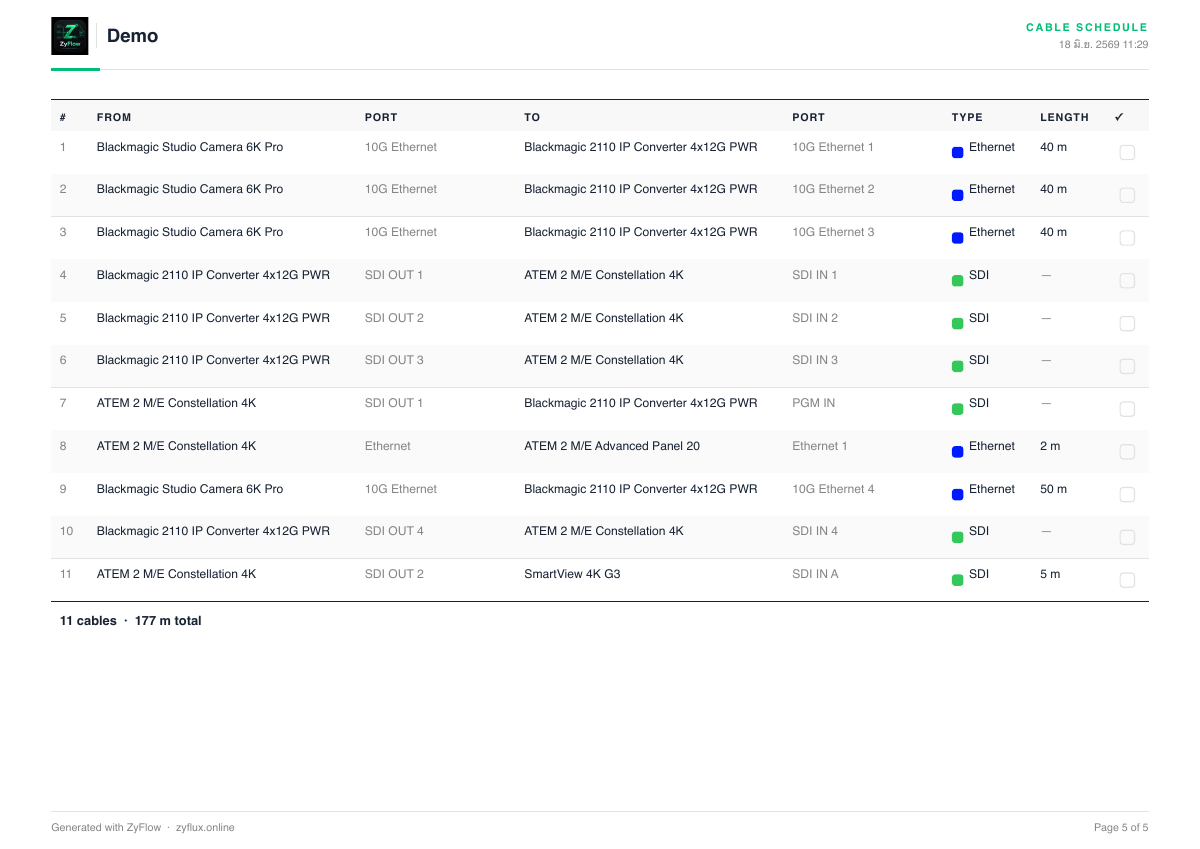
The Demo uses three 40 m and one 50 m camera Ethernet runs, a 2 m control connection and a 5 m monitor SDI run. Five other SDI cables are still unspecified, which is why Design Check flags them.
Turn cable lengths into a cable quote.
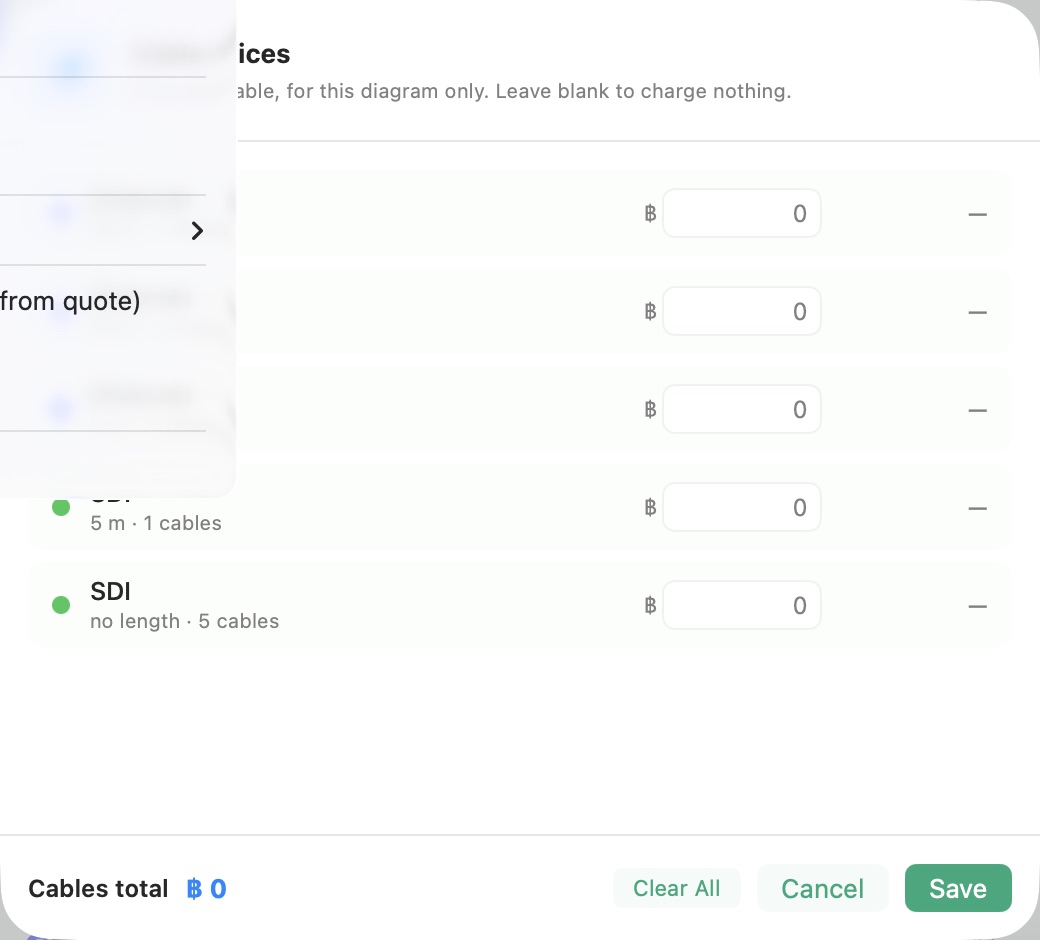
- Under Cables in the BOM sidebar, click Set cable prices.
- Enter a price for each cable type and length group.
- Click Save and review the updated total.
Set a discount and its scope.
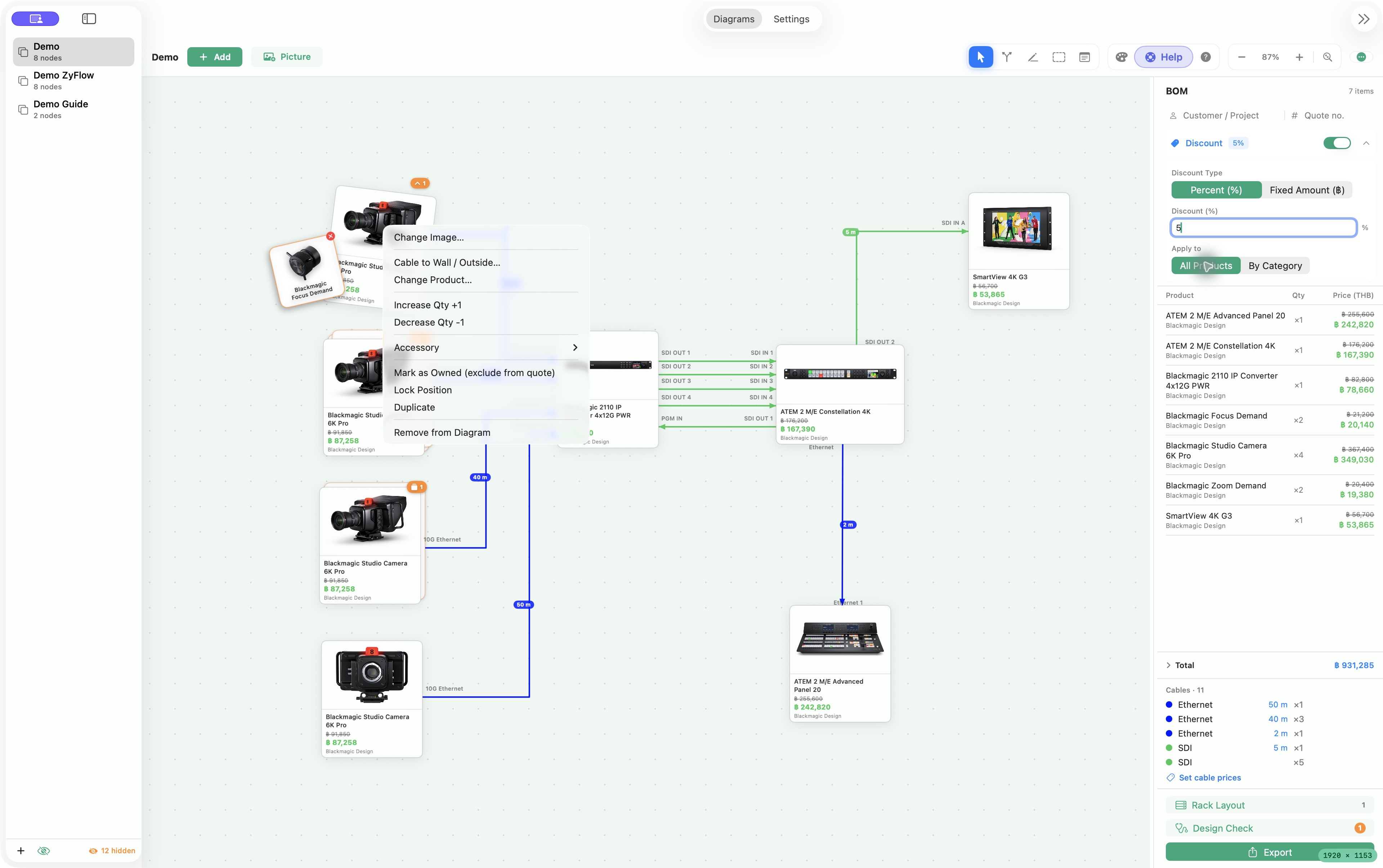
- Expand Discount in the BOM sidebar and turn it on.
- Choose Percent (%) or Fixed Amount, then enter the value.
- Choose All Products or By Category. For category discounts, select the categories to include.
- Review the product prices and total before exporting.
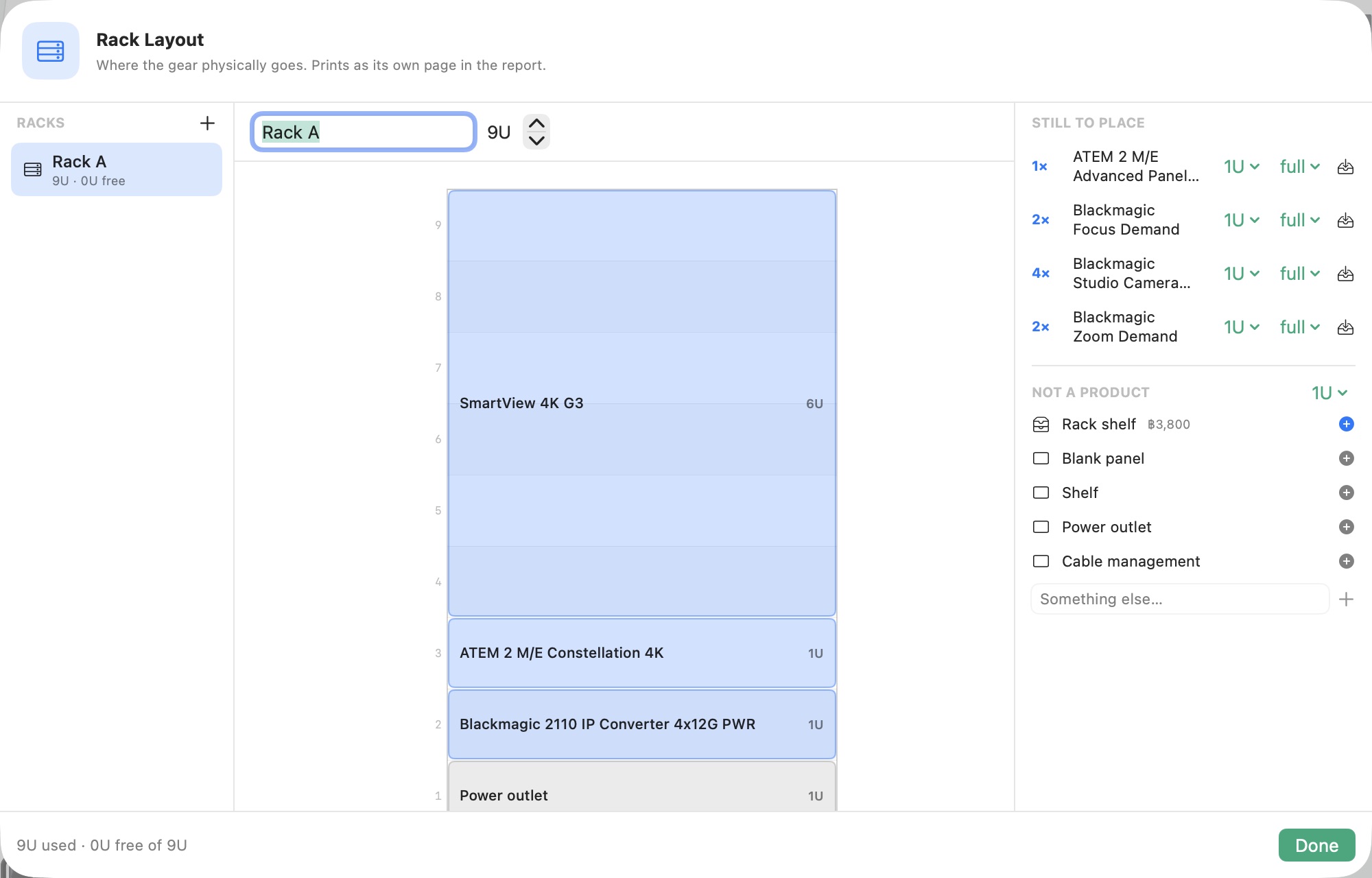
Build the rack alongside the diagram.
- Click Rack Layout at the bottom of the BOM sidebar.
- Add a rack, give it a name and set its height in U.
- In Still to Place, check a product’s height and width, then click it to place it in the rack.
- Use the placed item’s context menu to move it up or down, or remove it from that position.
- Mark cameras and other equipment that will not be installed in a rack as Not rack mounted.
- Use the non-product items for a blank panel, shelf, power outlet or cable management when planning the space.
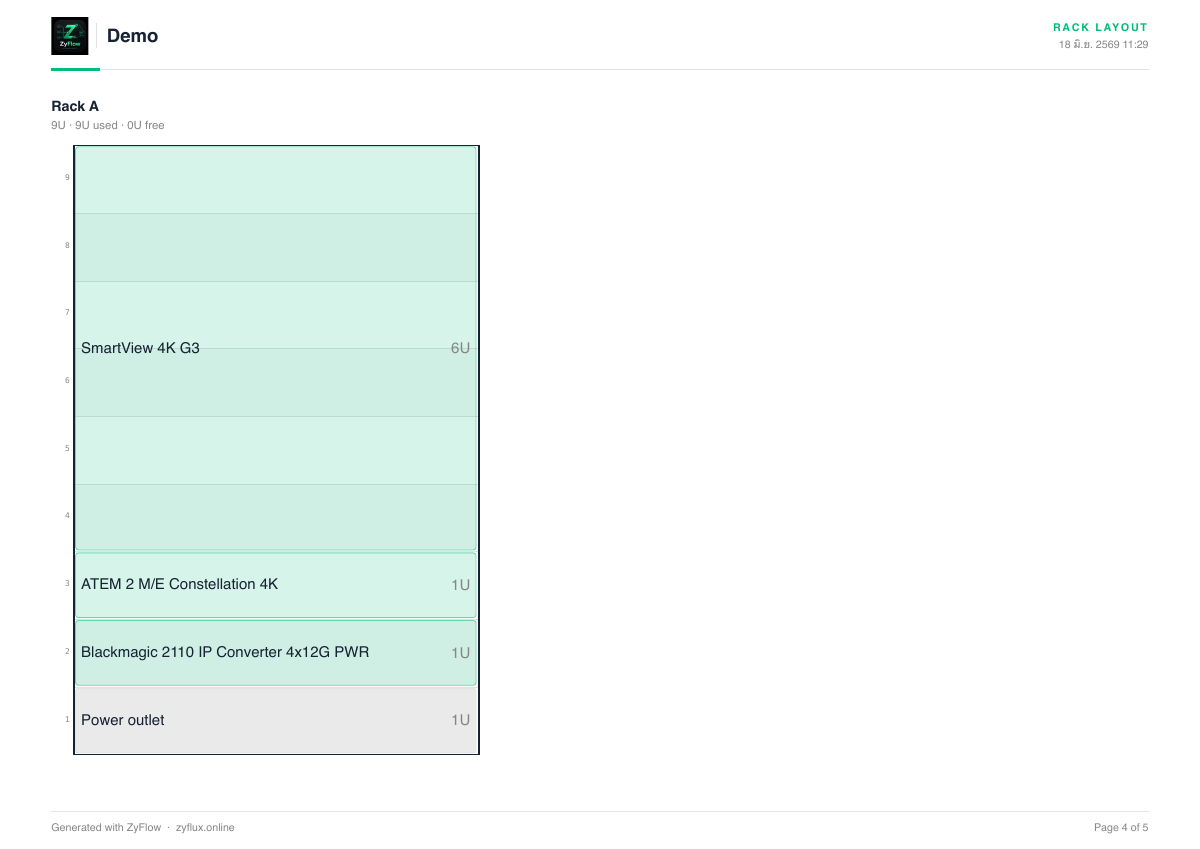
The example Rack A is 9U: a 6U SmartView, a 1U switcher, a 1U converter and a 1U power-outlet placeholder. Check real mounting dimensions and ventilation requirements before installation. A planning placeholder is not automatically a purchased product in the BOM.
Preview the whole document. Then export.
- Click Export at the bottom of the BOM sidebar.
- Use Fit Content or Pick Area to frame the diagram. Check its scale and Portrait / Landscape layout.
- Open the pages menu and include the supporting pages you need: parts list, cable list, rack layout and cable schedule.
- Click Preview All Pages and inspect each thumbnail.
- Choose the rack presentation style using the next step, then click Export PDF, choose a filename and save location, and save.
Use Export PNG when you need the diagram as an image. Use PDF to deliver the diagram together with the selected supporting pages.
One rack. Two ways to present it.
In Preview All Pages, click the Rack Layout page thumbnail first. The rack style control then lets you switch between Classic and Artwork. Preview the result before exporting.
Classic
A simple graphic layout for quickly reading equipment positions.
Artwork
A visual presentation using available device artwork.
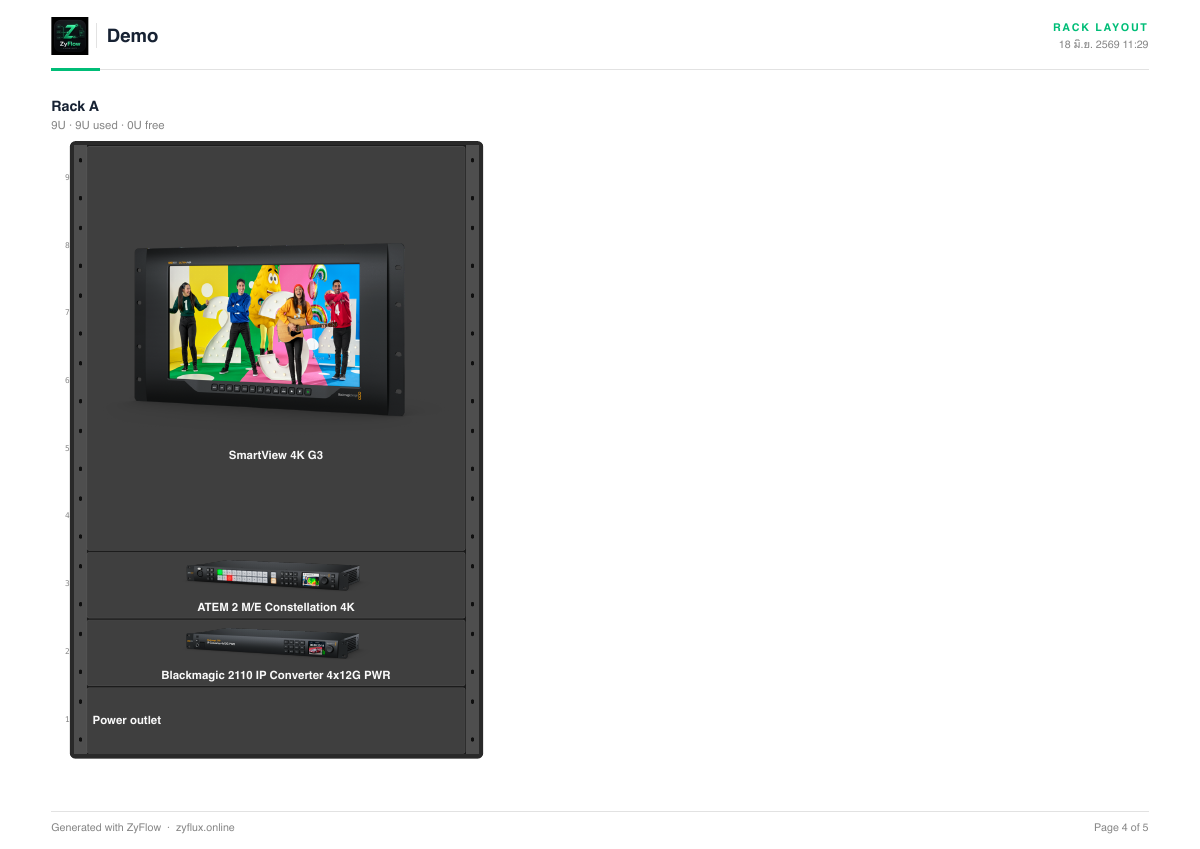
You can also adjust the orientation of the selected rack page. The style changes its presentation; review the underlying rack arrangement separately.
A diagram becomes a handover document.
The PDF exported from this Demo contains five pages. Your page count depends on your content and export selections.
01 System diagram02 Bill of materials03 Cable list04 Rack layout05 Cable schedule
The cable schedule lists individual connections, including their endpoints, ports, type and entered length. Review it alongside the grouped cable list.
Sample project data and catalog prices are illustrative. The sample retains five unspecified cable lengths so you can see the Design Check finding in context; complete those before using a design for an installation.